**Applies to:** Google Sheets in a desktop web browser.
## Turn on a filter
1. Make sure the table has a header row and that each column has a heading.
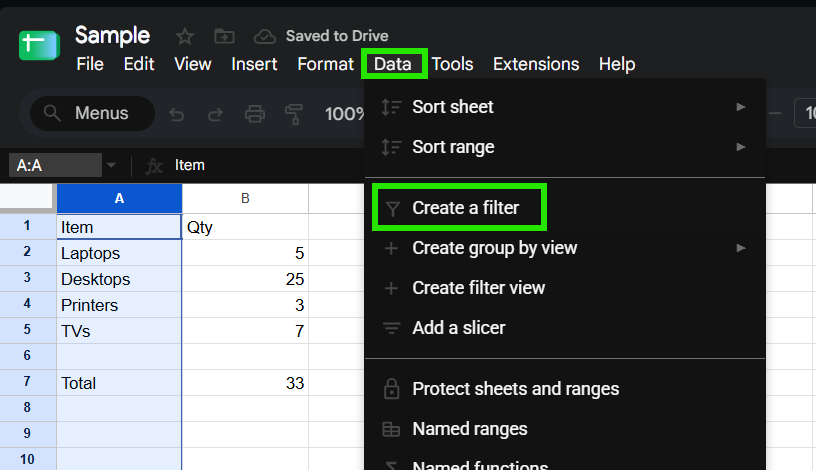
2. Select the full data range, including the headings. This helps keep each row’s information together when sorting.
3. Select Data > Create a filter.
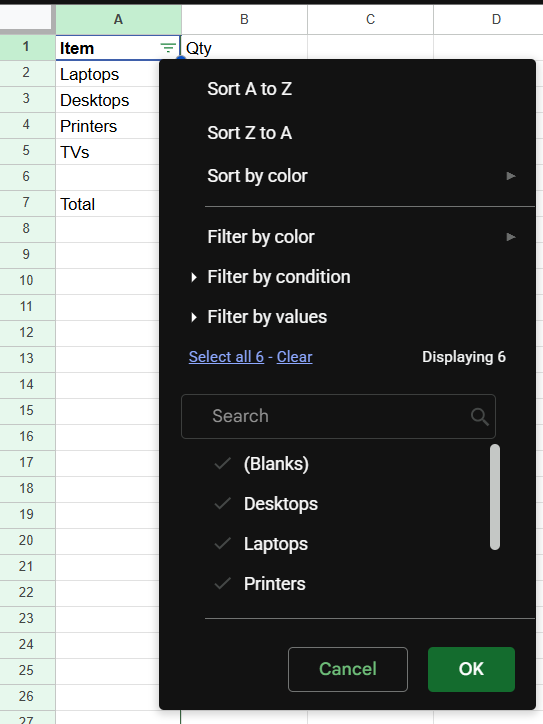
4. Select the filter icon in a column heading. Choose values to show, or choose a sort order.
To remove the filter, select Data > Remove filter.
## Use a filter view for your own view
A regular filter is visible to people who share the spreadsheet and editors can change it. To sort or filter without changing the view for everyone, select **Data > Create filter view**, then set your criteria. Filter views are useful when multiple people work in the same file.
## Related Google Help
Was this article helpful?
That’s Great!
Thank you for your feedback
Sorry! We couldn't be helpful
Thank you for your feedback
Feedback sent
We appreciate your effort and will try to fix the article