**Applies to:** Google Sheets in a desktop web browser.
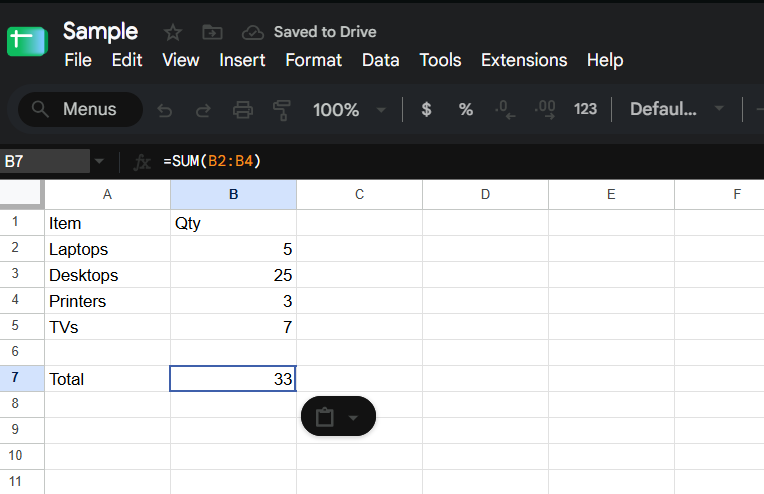
## Create a spreadsheet and enter data
1. Go to sheets.google.com and sign in with your work account. Or access via the 9 dots by your user name in the upper right, click Sheets.
2. Select Blank spreadsheet.
3. Select Untitled spreadsheet at the top left, enter a descriptive name, and press Enter.
4. Select a cell and type a value. Press Enter to move to the next row, or Tab to move to the next column.
5. Use the first row for column headings, such as Item and Qty.
## Add a total with SUM
1. Select the cell where you want the total to appear.
2. Type `=SUM(B2:B4)` and press Enter. This adds the values in cells B2 through B4.
3. Adjust the cell range for your data. For example, `=SUM(C2:C10)` adds values in cells C2 through C10.
Formulas begin with an equal sign (`=`). Changes are saved automatically while you’re online.
## If the formula doesn’t calculate
Check that the formula starts with `=`, that the cell range includes the values you want, and that the values are numbers rather than text.
##Note
Many formulas and functions in Google Sheets work the same way as they do in Microsoft Excel. For example, both use formulas such as =SUM(A1:A10) and =AVERAGE(B2:B8). Some features or functions may differ, so check Google Sheets Help if a formula doesn’t behave as expected.
## Related Google Help
Was this article helpful?
That’s Great!
Thank you for your feedback
Sorry! We couldn't be helpful
Thank you for your feedback
Feedback sent
We appreciate your effort and will try to fix the article