**Applies to:** Google Docs in a desktop web browser. Menus can look different on mobile.
## Create a document
1. Go to docs.google.com and sign in with your work account. Or access via the 9 dots
by your user name in the upper right, click Docs.
2. Under Start a new document, select Blank.
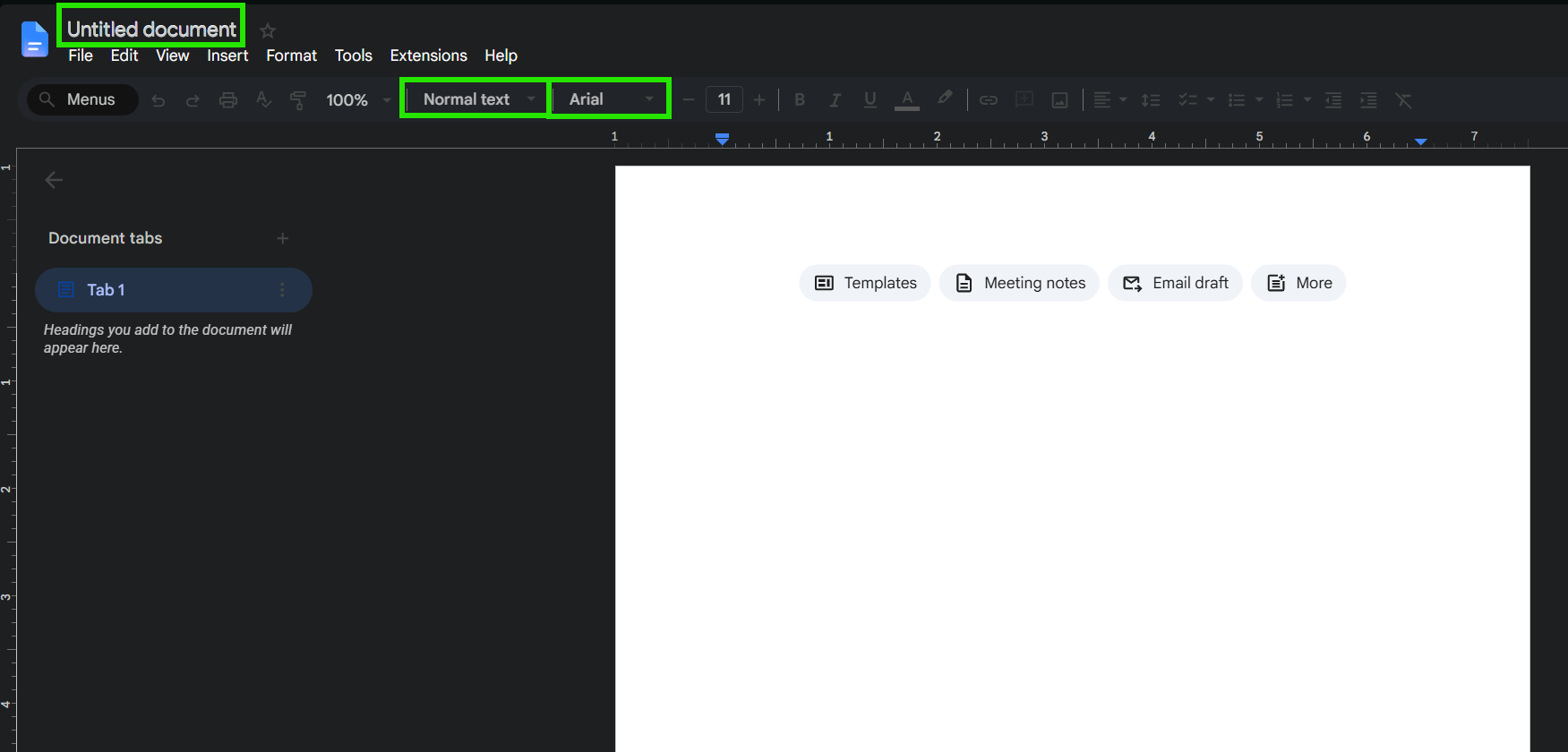
3. At the top left, select Untitled document, enter a descriptive name, and press Enter.
4. Click in the page and begin typing. Google Docs saves changes automatically while you’re online.
## Format a title or heading
1. Select the text you want to format.
2. Open the paragraph style menu in the toolbar (it may say Normal text).
3. Choose Title, Subtitle, or a Heading style.
Use heading styles for section titles. This keeps formatting consistent and helps readers navigate longer documents. Use Undo if you make a change you want to reverse.
## If you can’t edit the document
Check whether you have Viewer, Commenter, or Editor access. To do so go to File > Details. Ask the owner to change your access if you need to edit.
## Related Google Guidance
Was this article helpful?
That’s Great!
Thank you for your feedback
Sorry! We couldn't be helpful
Thank you for your feedback
Feedback sent
We appreciate your effort and will try to fix the article