**Applies to:** Google Drive in a desktop web browser.
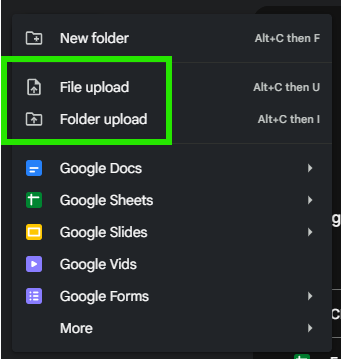
## Upload a file or folder
1. Go to drive.google.com and sign in with your work account. Or access via the 9 dots by your user name in the upper right, click Drive.
2. Open the destination folder, or stay in My Drive to upload there.
3. Select New, then choose File upload or Folder upload.
4. Choose the item on your computer and wait for the upload to finish.
You can also drag files into an open Drive folder in your browser.
## Create a folder and move items into it
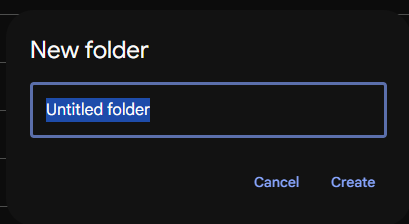
1. Select New > New folder.
2. Enter a clear folder name and select Create.
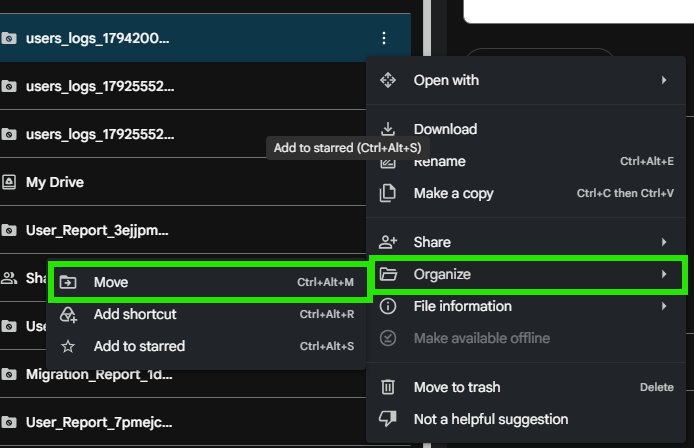
3. To move a file, right-click it or go to the 3 dots, select Organize > Move, choose the destination folder, and select Move.
Use short, meaningful names and a simple folder structure. If you can’t move a file, you may not have permission to move it.
## Related Google Help
Was this article helpful?
That’s Great!
Thank you for your feedback
Sorry! We couldn't be helpful
Thank you for your feedback
Feedback sent
We appreciate your effort and will try to fix the article