**Applies to:** Gmail in a desktop web browser. Mobile steps may look different.
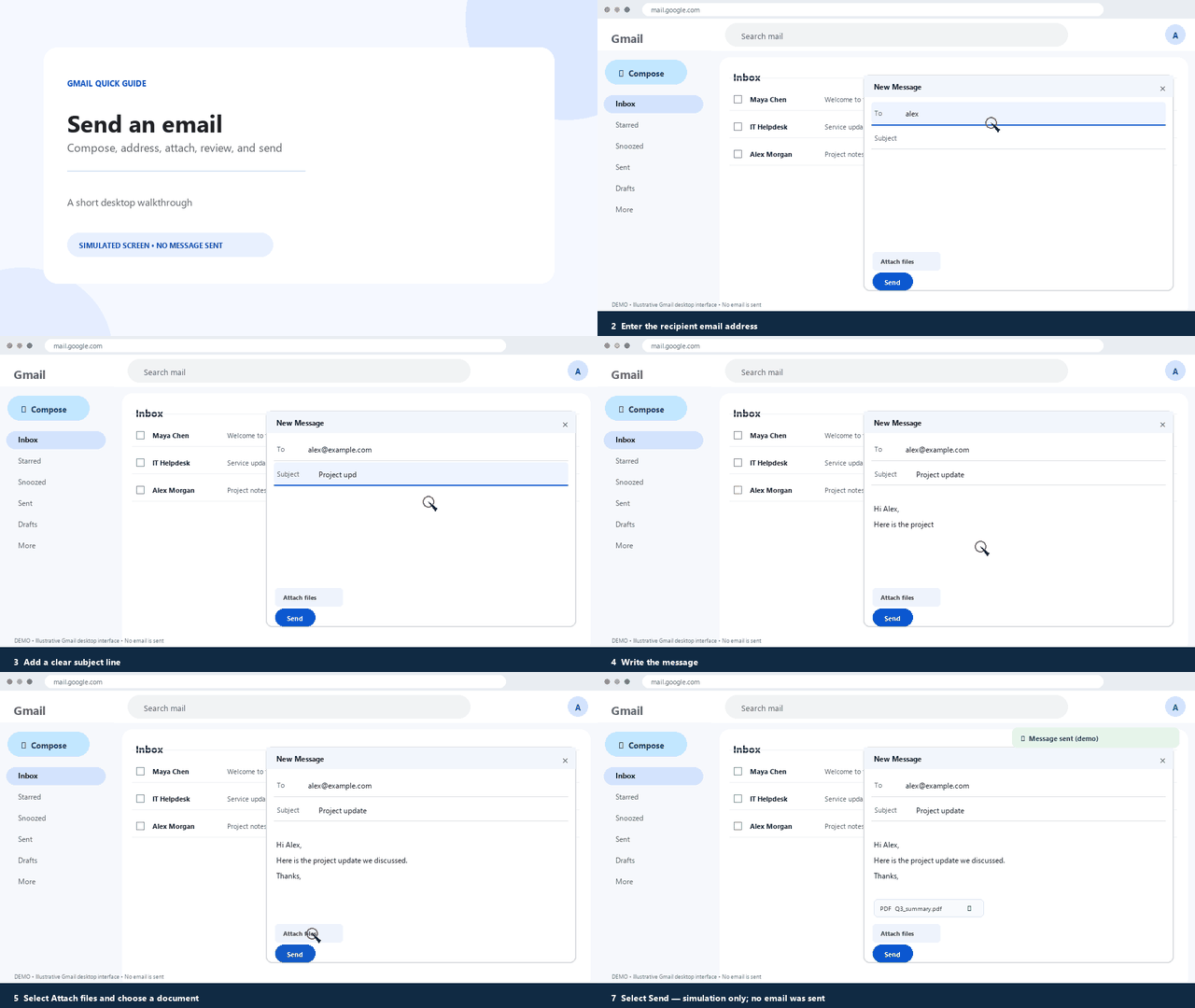
1. Open Gmail and select Compose.
2. In To, enter the recipient’s email address. For additional recipients, use CC or BCC as appropriate.
3. Add a clear subject and write your message.
4. To attach a file, select the paperclip (Attach files) at the bottom of the compose window, choose the file, and wait for the upload to finish. You can also drag a file into the message window.
5. Review the recipients, subject, message, and attachment, then select Send.
## Before you send
- Confirm the recipient address, especially when sending confidential information.
- Gmail business accounts support attachments up to 25 MB total. Larger files may be added as a Google Drive link; check that recipients have access.
- Gmail blocks some file types for security. If an attachment will not upload, try an approved Drive link or contact your helpdesk.
## Related Google guidance
Was this article helpful?
That’s Great!
Thank you for your feedback
Sorry! We couldn't be helpful
Thank you for your feedback
Feedback sent
We appreciate your effort and will try to fix the article