## Archive a message
1. In Gmail, select the checkbox beside the message. To archive an open message, use the Archive button in the toolbar above it.
2. Select Archive (the box with a downward arrow) in the toolbar. The message disappears from the Inbox, but remains in your mailbox.

## Find an archived message
1. In the left sidebar, select More if needed, then select All Mail. Archived messages appear there along with other mail, except messages in Spam and Trash.
2. Or search Gmail using a sender, subject, or phrase. You can use `in:archive` to look for archived messages.
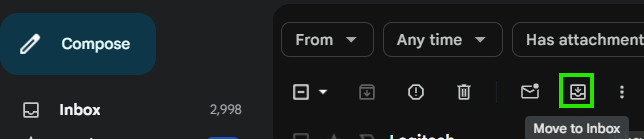
## Move a message back to Inbox
Find and select the message, then select Move to Inbox in the toolbar.
## Archive or delete?
Archive keeps the message in your account and removes its Inbox label. Delete moves the message to Trash; messages in Trash are automatically deleted after 30 days. If someone replies to an archived conversation, it can return to your Inbox.
## Related Google guidance
Was this article helpful?
That’s Great!
Thank you for your feedback
Sorry! We couldn't be helpful
Thank you for your feedback
Feedback sent
We appreciate your effort and will try to fix the article