**Applies to:** Gmail in a desktop web browser. Filters are managed in Gmail settings.
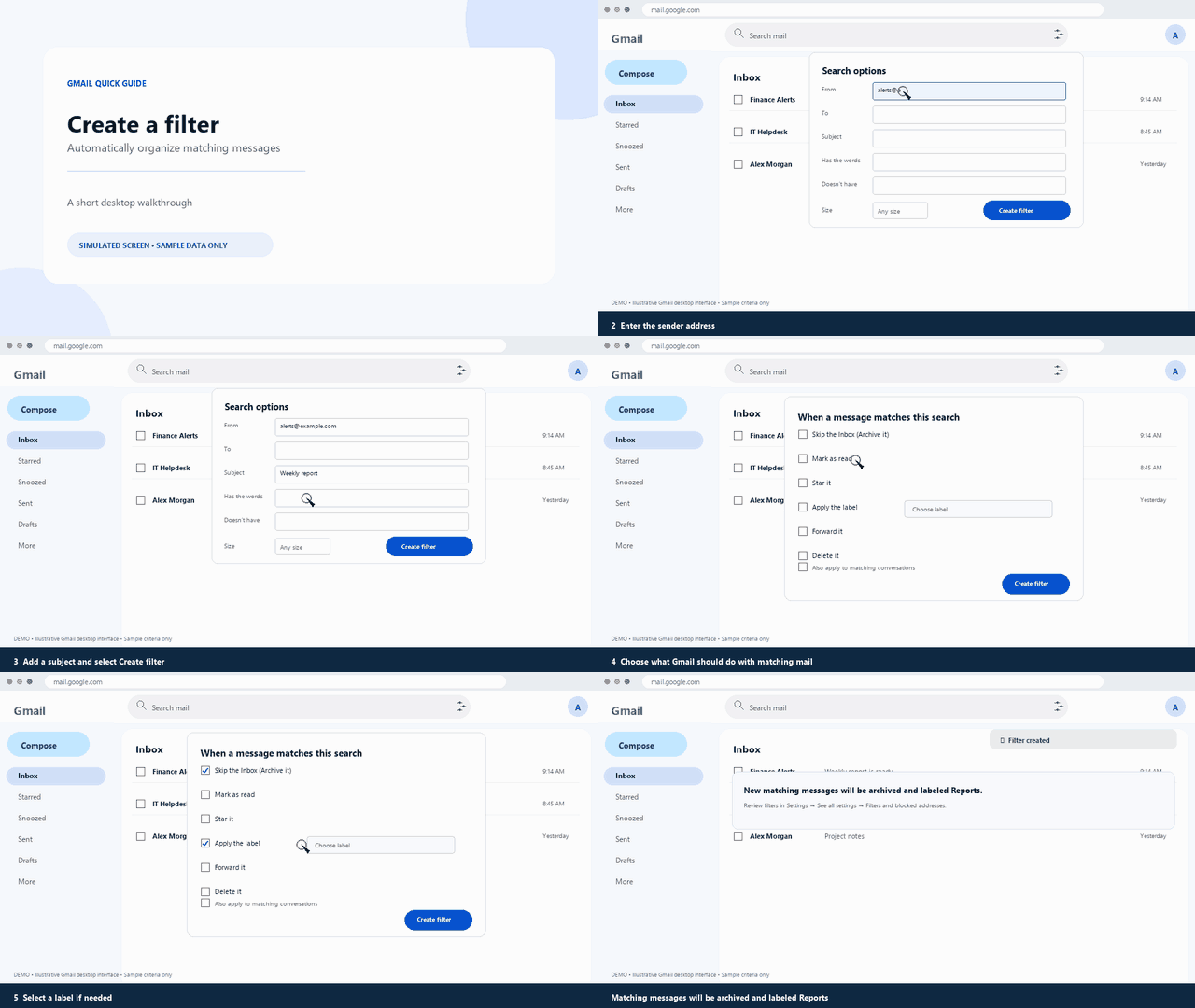
## Create a filter
1. In Gmail, select the search options icon at the right side of the search box.
2. Enter one or more criteria, such as a sender address, subject, or words. Select Search first if you want to confirm which messages match.
3. Select Create filter at the bottom of the search panel.
4. Choose what Gmail should do with matching messages. Available actions can include applying a label, archiving, starring, marking as read, or forwarding.
5. Select Create filter to save it.
## Edit or delete a filter
1. Select Settings (gear), then See all settings.
2. Open Filters and blocked addresses.
3. Find the filter and select Edit or Delete. If editing, select Continue, update the action or criteria, then save the change.
## Notes
- A forwarding filter affects new messages only.
- If you choose **Skip the Inbox (Archive it)**, filtered messages remain in All Mail and can still be found with search.
- Use care with filters that automatically delete, forward, or archive messages. Verify the criteria before saving.
## Related Google guidance
Was this article helpful?
That’s Great!
Thank you for your feedback
Sorry! We couldn't be helpful
Thank you for your feedback
Feedback sent
We appreciate your effort and will try to fix the article