Use this guide to sign in to your work computer, set your password, and open Gmail.
1. Sign in to your computer
- Enter your username and current password as you normally would.
- Your username is your first name followed by the first initial of your last name. For example, John Doe would use JohnD.
2. Start the password change
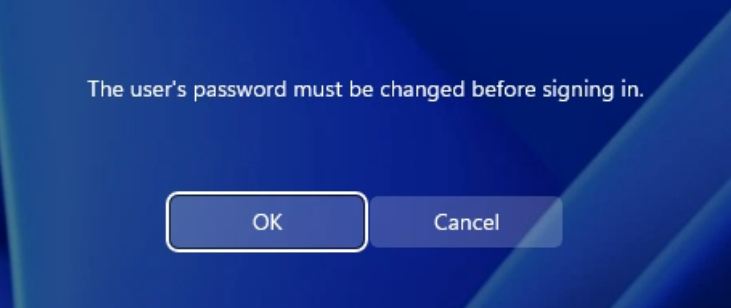
- When prompted to change your password, select OK.
3. Choose a new password
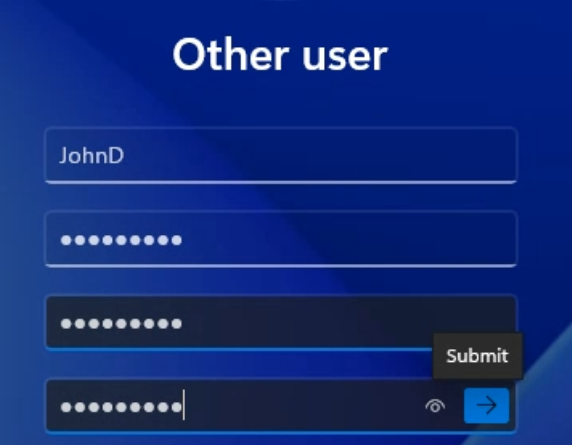
- Enter your new password in both the New password and Confirm password fields. Select the arrow button or press Enter to submit.
- If the password doesn’t meet the requirements, you’ll see this message:
Unable to update the password. The value provided for the new password does not meet the length, complexity, or history requirements of the machine or domain. Try increasing the length of your password, along with including upper and lowercase characters, numbers, and symbols.
- Try a longer password that includes uppercase and lowercase letters, numbers, and symbols. If you still can’t change it, reach out to your manager
4. Use your new password
- Your new password is now your password for both your computer and Gmail. When you change your computer password in the future, your Gmail password will sync to match it.
5. Sign in to Gmail
- Open your web browser and go to mail.google.com.
- Sign in using your username, followed by your company's email domain (@imlaycitycdjr.com or @imlaycityford.com). For example: johnd@imlaycitycdjr.com.
- Enter the password you just set for your computer, then select Next.
6. Set up multi-factor authentication (MFA)
During your first sign-in, you may be asked to set up MFA, also called 2-Step Verification. MFA adds a second check to confirm it’s you when you sign in.
1. If prompted, select Set up, Get started, or the similar option shown on screen.
2. Follow the prompts and choose a method listed. Depending on your account settings, you may see options such as a Google prompt, an authenticator app, a phone verification code, a passkey, or a security key.
3. Complete the verification steps shown on screen. If you use a code, enter it only on the sign-in screen; never share verification codes with anyone.
4. If you’re offered backup methods or backup codes, follow your organization’s instructions and store them somewhere secure.
5. Be sure to click enable at the bottom!
6. Finish setup and return to Gmail.
**Your available methods may differ from the examples above because work accounts can have organization-specific settings. If you don’t have access to an offered method, don’t guess or use someone else’s device; contact the helpdesk for assistance.
For more information, see Google’s 2-Step Verification setup guide
Was this article helpful?
That’s Great!
Thank you for your feedback
Sorry! We couldn't be helpful
Thank you for your feedback
Feedback sent
We appreciate your effort and will try to fix the article