**Applies to:** Google Drive in a desktop web browser. Your organization may restrict external sharing.
## Find a file
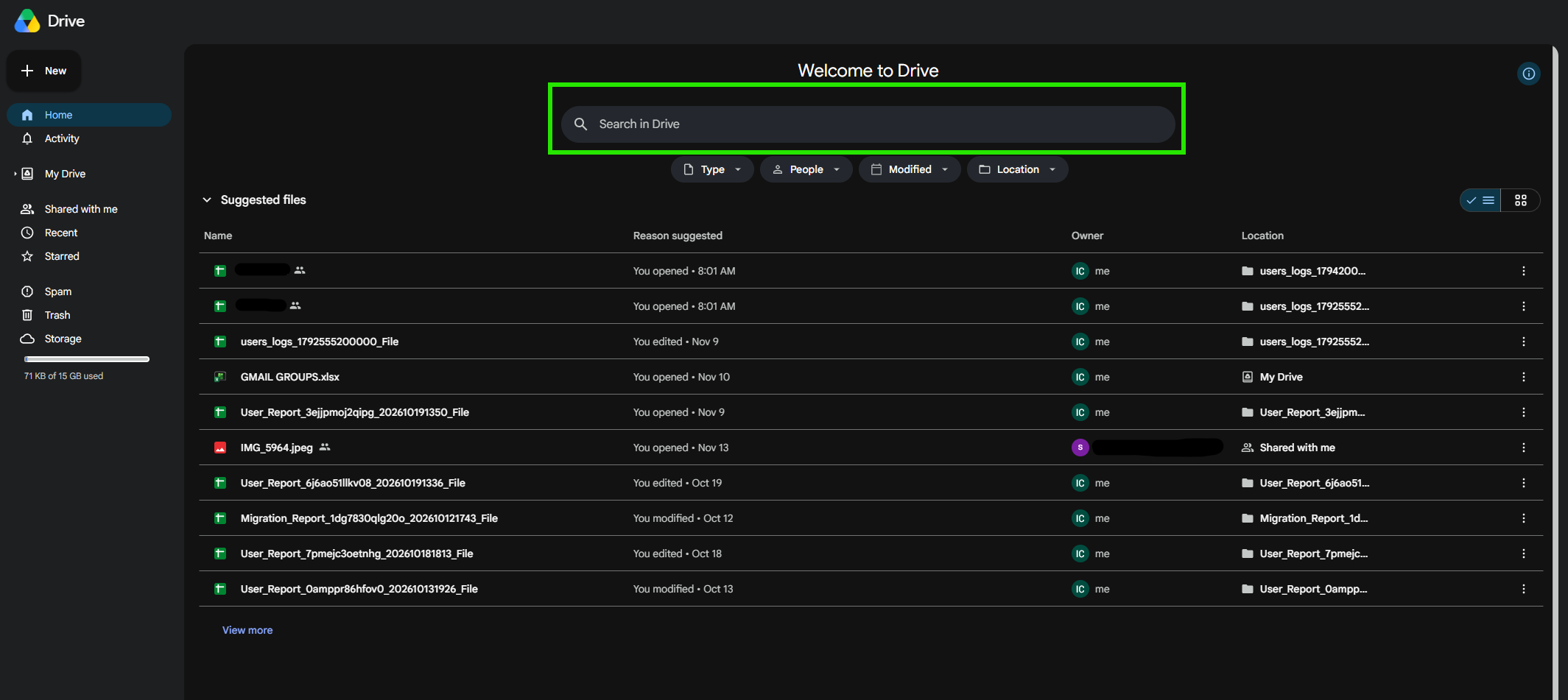
1. Go to drive.google.com or access via the 9 dots by your user name in the upper right, click Drive.
2. Enter a file name or keyword in the search bar and press Enter.
3. Open the matching result. If you have several matches, compare the file name, owner, and modified date.
## Share with specific people
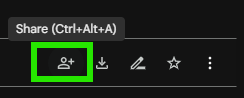
1. Select the file and choose Share.
2. Enter the recipient’s email address.
3. Choose the access they need: Viewer, Commenter, or Editor.
4. Confirm the recipient and role, then select Done.
For named recipients, keep General access set to Restricted. Avoid Anyone with the link unless the file is meant for broad access and your organization permits it. Sharing options may be limited by your administrator.
## If you see “You need access”
Make sure you’re signed into the Google account the owner shared with. Select Request access if available, or contact the file owner.
## Related Google Help
Share and manage access to Drive files
Was this article helpful?
That’s Great!
Thank you for your feedback
Sorry! We couldn't be helpful
Thank you for your feedback
Feedback sent
We appreciate your effort and will try to fix the article